How to Get Facebook Lead Ads Into Google Sheets for Free (and Actually Follow Up)
Four ways to send Facebook and Instagram lead form leads to Google Sheets for free, plus a sheet layout and daily follow-up routine that turns those leads into customers.

Lead form ads (also called instant forms) on Facebook and Instagram are one of the cheapest ways for Indian businesses to collect enquiries. People tap the ad, a form opens pre-filled from their profile, they answer a question or two, and submit without leaving the app.
Then the leads sit inside Meta. Many business owners don't know where to find them, download a CSV once a week, or rely on someone checking Meta Business Suite now and then. Leads go cold. Some are never called at all. And without the campaign details next to each lead, nobody can tell which ads bring customers.
This guide shows you how to get Facebook and Instagram lead ads into Google Sheets for free or nearly free, using four methods from simplest to most flexible. It also shows how to lay out the sheet so it works as a simple sales pipeline, a daily follow-up routine, how to measure which campaigns bring customers, and common problems with fixes.
Meta updates its interface often, so menu names may differ slightly from what's described here.
Fastest route
- Easiest: use Meta's native Google Sheets connection, if it's available in your account, under the Instant Forms CRM setup in Meta Business Suite.
- Always available: download leads as CSV from your Page's forms library or Leads Center, then paste into a sheet. Leads are typically available for download for 90 days, so don't wait too long.
- More control: use an automation tool like Zapier, Make or Pabbly to push each lead to a sheet instantly, with field mapping and alerts. Free tiers have limits.
- For developers: use Meta's Graph API and Google Apps Script or a small server to write leads to a sheet.
- Whatever method you use, add columns for status, owner and next follow-up date, and call new leads within an hour.
Where your leads live in Meta
Before connecting anything, know where leads are stored:
- Meta Business Suite > Leads Center (or "Leads" under All tools): shows leads with basic management features.
- Your Facebook Page > Publishing tools or Forms library: lists your instant forms with a download option for leads.
- Ads Manager: shows the number of leads per ad, but not the lead details themselves.
You need to be an admin (or have the right permissions) on the Page and Business Portfolio to access leads. If you can't see them, check your access in Business Settings under the Page's people and permissions.
Method 1: Meta's native Google Sheets connection
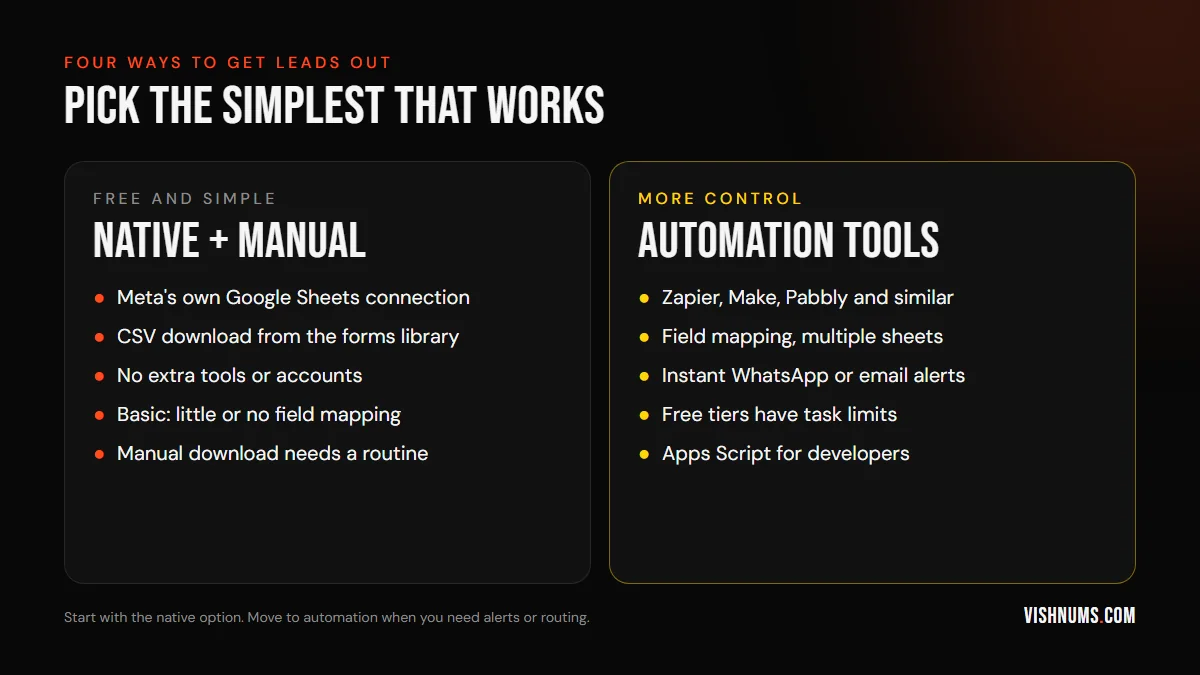
Meta offers built-in CRM connections for instant forms, and many accounts now include Google Sheets as an option.
- 01Open Meta Business Suite and go to All tools, then Instant Forms (or Leads Center).
- 02Find CRM setup or "Connect CRM".
- 03Choose Google Sheets from the list of integrations.
- 04Sign in with your Google account and grant access.
- 05Select or create the sheet and choose which forms to connect. Some versions let you apply the connection to all new forms automatically.
- 06Submit a test lead using Meta's Lead Ads Testing Tool to check that it appears in the sheet.
Pros: free, no extra tools, set up in minutes.
Cons: basic. Field mapping and alert options are limited, the layout may change with each form, and you'll usually need to add your own columns for status and follow-up. If you don't see Google Sheets as an option, use one of the other methods.
Method 2: CSV download (always available)
This works for every account, and it's a good backup even if you use another method.
- 01Go to your Page's forms library or Leads Center.
- 02Choose the form and download leads as CSV, either all leads or new leads since the last download.
- 03Open the CSV and copy the new rows into your Google Sheet.
- 04Repeat daily, ideally at a fixed time.
Pros: free, reliable, no setup.
Cons: manual, and leads wait until someone downloads them. If your team calls leads once a day, many will have cooled. Leads are typically available for download for 90 days, so if you rely on this method, make it a daily habit.
Tip: include campaign and ad information in the download if the option exists, so you know where each lead came from.
Method 3: automation tools
Tools like Zapier, Make (formerly Integromat), Pabbly Connect, Integrately and others can connect Facebook Lead Ads to Google Sheets and send each new lead to a row within minutes.
A typical setup:
- 01Create an account with the automation tool.
- 02Choose the trigger: Facebook Lead Ads, new lead. Connect your Facebook account and select the Page and form.
- 03Choose the action: Google Sheets, add row. Connect your Google account and select the sheet.
- 04Map fields: match form questions to sheet columns, and add campaign and ad fields if the tool provides them.
- 05Add more actions if needed: a WhatsApp or email alert to the sales team, or a separate sheet per form.
- 06Test with Meta's Lead Ads Testing Tool, then turn it on.
Pros: instant, flexible, alerts and routing, works with many other tools.
Cons: free tiers limit the number of tasks or runs per month; costs grow with volume. You depend on another service. If the Facebook connection expires (for example, after a password change), leads stop flowing until someone reconnects it.
For small volumes, a free tier may be enough. Estimate your monthly leads before choosing.
Method 4: Graph API and Apps Script (for developers)
If you have a developer, you can connect directly:
- Subscribe to lead webhooks for your Page through a Meta app. When a lead arrives, Meta sends a notification with the lead ID.
- Fetch the lead details through the Graph API using the lead ID and an access token.
- Write to Google Sheets using the Sheets API from a small server, or receive the webhook in Google Apps Script deployed as a web app.
Pros: no third-party costs, full control, can add custom logic.
Cons: needs technical skill, app review and permissions, token management, and maintenance when Meta changes its API. Only worth it at larger volumes or with specific needs.
Lay out the sheet as a pipeline
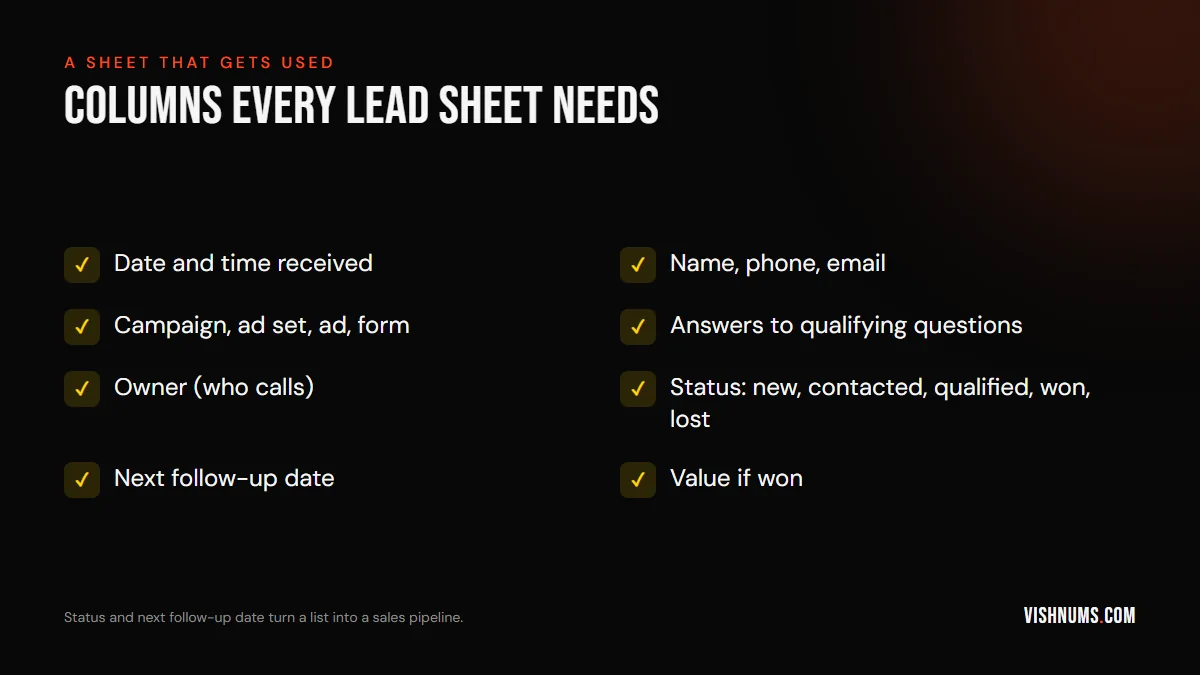
A list of names isn't a sales system. Add columns that turn the sheet into a simple pipeline:
- Date and time received: to measure response speed.
- Name, phone, email.
- Campaign, ad set, ad and form: to know where each lead came from.
- Answers to your form questions: budget, location, timing and so on.
- Owner: who is responsible for calling.
- Status: New, Contacted, Qualified, Won, Lost (with a reason).
- Notes: a short summary of each call.
- Next follow-up date.
- Value if won: the sale or booking amount.
Use data validation (drop-down lists) for Status and Owner so everyone uses the same values. Use conditional formatting to highlight new leads and overdue follow-ups.
If your automation writes to one tab, keep your working columns on the same rows, or use a second tab that pulls new leads in with a formula, so automation doesn't overwrite your notes.
Useful formulas and views
A few simple Google Sheets features make the pipeline far easier to run:
- Filter views: create saved views like "New leads", "Follow-ups due today" and "My leads" (filtered by owner), so each person sees only what they need without disturbing others.
- Response time: add a column for the time of the first call, and a formula that subtracts the lead's received time. Average it weekly to see how fast your team really responds.
- Overdue follow-ups: use conditional formatting to colour a row red when the next follow-up date is before today and the status isn't Won or Lost.
- Counts by status: a small summary tab with COUNTIF formulas showing how many leads are New, Contacted, Qualified, Won and Lost this month.
- Duplicates: use conditional formatting or a COUNTIF on the phone number column to flag people who submitted more than once.
You don't need to be a spreadsheet expert. Set these up once, and the sheet will show you what needs attention each morning.
Several forms, branches or salespeople
As you grow, one sheet for everything gets messy. Options:
- One tab per form or campaign type, using separate integrations or automation routes.
- Routing by location: an automation tool can send leads to different tabs or notify different branch managers based on a form answer such as district.
- Round-robin assignment: some automation tools can assign leads to salespeople in turn and notify each person.
- A master tab that combines everything for reporting, using formulas like QUERY or IMPORTRANGE.
Keep the column structure identical across tabs, so reports work across all of them.
Instant alerts to the team
Leads that sit unnoticed in a sheet go cold just as quickly as leads left in Meta. Set up alerts so someone knows immediately:
- Email or WhatsApp notifications through your automation tool, with the lead's name, phone and key answers.
- Google Sheets notification rules (under Tools) that email you when the sheet changes, as a simple free option.
- A shared team chat where new leads are posted automatically.
Alerts should go to the person who will call, not just the owner of the business.
When to move to a CRM
Google Sheets works well for small and medium lead volumes and small teams. Consider a CRM when:
- Several salespeople need to manage their own leads with history and reminders.
- You want call logging, WhatsApp integration and automated follow-up sequences.
- You handle hundreds of leads a week.
- You want to send lead outcomes back to Meta automatically.
Many Indian CRMs connect directly to Facebook lead ads. Moving from a well-organised sheet is easy, because your columns already match what a CRM needs.
The daily follow-up routine
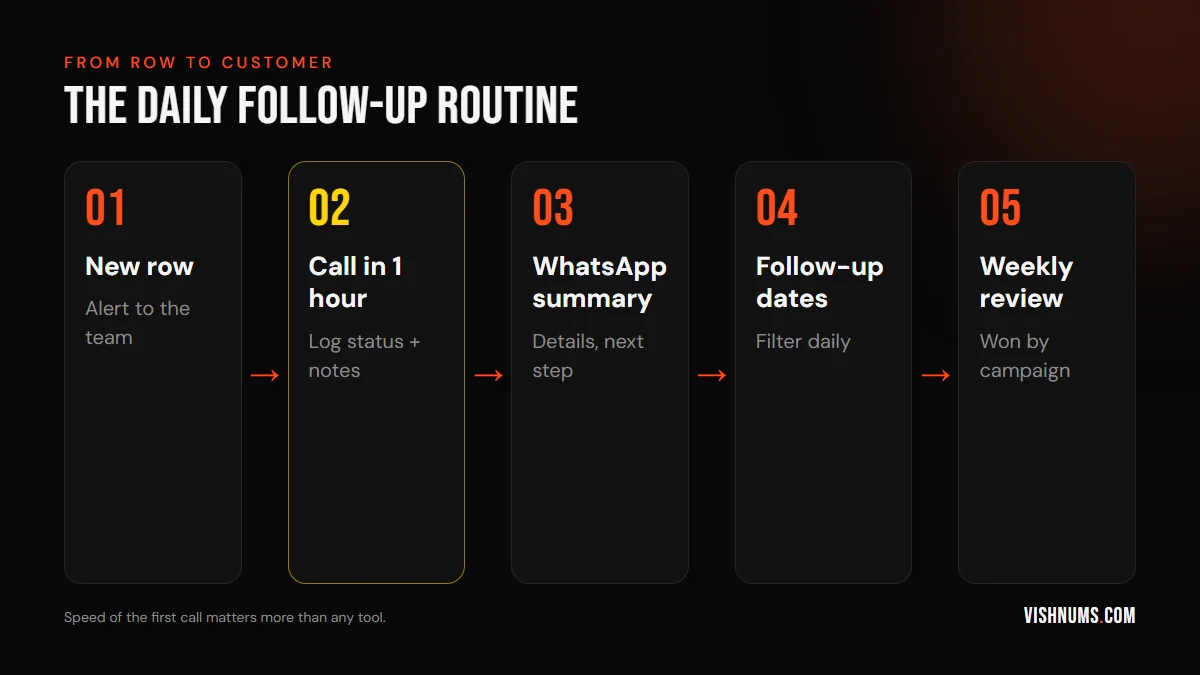
The tool is the easy part. What turns leads into customers is the routine:
- 01Alert the team when a new lead arrives (through the automation tool, or by checking the sheet at set times).
- 02Call within an hour during working hours. Leads called quickly are far more likely to pick up and remember filling the form.
- 03Log the result immediately: status, notes, next follow-up date.
- 04Send a WhatsApp summary after the call with the details discussed and the next step.
- 05Filter the sheet every morning for follow-ups due today and overdue.
- 06Try several times before marking a lead as lost; many people miss the first call.
Our guide to how to follow up enquiries has a detailed follow-up cadence written for resorts that adapts to most businesses.
Measure which campaigns bring customers
Once you have campaign details and status in the sheet, you can answer the question that matters: which ads bring customers, not just leads?
- Create a pivot table with Campaign (or Ad) as rows, and counts of leads, qualified leads and won leads as values, plus the sum of value.
- Add ad spend from Ads Manager for the same period.
- Calculate cost per lead, cost per qualified lead and cost per customer.
You'll often find that the campaign with the cheapest leads isn't the one with the cheapest customers. Shift budget accordingly. For more on this, see why Facebook ads bring leads but no sales.
Send results back to Meta
Meta optimises lead campaigns for people likely to submit forms, not people likely to buy, unless you tell it which leads became customers. Once your sheet tracks status, you can send those outcomes back to Meta through the Conversions API (sometimes called conversion leads optimisation for CRM data), so delivery shifts towards higher-quality leads.
This step usually needs a CRM or a developer, but it's one of the most effective improvements for lead campaigns. Our guide to sending CRM bookings to the Conversions API explains how.
Improve lead quality in the form
Many lead problems start in the form itself. Instant forms are so easy to submit that some people tap through without meaning to. Improve quality with:
- Higher intent forms, where people must confirm their answers on a final screen.
- Qualifying questions: budget range, location, timing, specific needs.
- A clear intro that says what happens next: "Our team will call you within an hour."
- Phone number verification, where available, to reduce fake numbers.
Fewer, better leads are cheaper in the end. Review form answers every few weeks: if a question doesn't help you decide who to call first, replace it with one that does. Keep the form short enough that genuine prospects still finish it on a phone.
What to say on the first call
A good first call is short, friendly and moves the lead to the next step. A simple structure you can adapt:
- 01Introduce yourself and remind them: "Hi, this is [Name] from [Business]. You filled a form on Instagram about [product or service] a little while ago."
- 02Confirm their need: ask one or two questions based on their form answers.
- 03Give the key information they asked about, such as price range, availability or process.
- 04Agree on the next step: a visit, a demo, a quote, a booking.
- 05Send a WhatsApp message right after with a summary and the next step.
If they don't answer, send a short WhatsApp message saying you called and asking for a good time. Many people prefer to reply to a message before taking a call from an unknown number.
Privacy and security
Lead data is personal information. Protect it:
- Limit sheet access to people who need it, and remove access when staff leave.
- Don't share the sheet link publicly or with "anyone with the link" access.
- Include a privacy policy link in your instant form, as Meta requires.
- Only contact people for what they enquired about, and respect requests to stop.
Common problems and fixes
- Leads stopped arriving in the sheet: check whether the Facebook or Google connection expired, especially after password changes or permission updates. Reconnect and re-test.
- Test leads don't appear: make sure the form is connected to the integration and that you're using Meta's Lead Ads Testing Tool on the right Page and form.
- Missing permissions: the person connecting must have admin or leads access on the Page and Business Portfolio.
- Duplicate rows: some automations retry on errors; add a check on lead ID or remove duplicates weekly.
- Columns shifting: if you edit form questions, update the field mapping.
- Old leads missing: leads are typically available for 90 days; download older ones before they expire.
What changes when the routine changes
The centre and its numbers are hypothetical; what matters is the change in process.
A coaching centre runs lead ads and downloads the CSV every few days. Of 300 leads a month, the team reaches about 40% and enrols 15 students. After connecting leads to a sheet with instant alerts and a one-hour call rule, the team reaches 70% of leads and enrols 28 students from the same number of leads and the same ad spend.
Nothing changed in the ads. The sheet and the routine did the work. A few months later, the pivot table showed that one of the centre's three campaigns produced most of the enrolments despite having the most expensive leads, so the budget moved there, and enrolments rose again without any increase in spend. That kind of decision is only possible when every lead's source and outcome sit in one place.
Sources and further reading
Useful tools for testing the setup:
- Meta Lead Ads Testing Tool for sending test leads
Frequently asked questions
How do I get Facebook lead ads into Google Sheets for free?
Use Meta's native Google Sheets connection in the Instant Forms CRM setup if it's available in your account, or download leads as CSV from your forms library and paste them into a sheet. Automation tools with free tiers also work for small volumes.
Where are my Facebook lead form leads stored?
In Meta Business Suite's Leads Center and your Page's forms library, where you can view and download them. Ads Manager shows lead counts but not details.
How long are Facebook leads available to download?
Leads are typically available for download for 90 days, so set up a regular download or an automatic connection to avoid losing them.
Why did my leads stop going to Google Sheets?
Usually because a Facebook or Google connection expired or lost permissions, or the form changed. Reconnect the integration and test with Meta's Lead Ads Testing Tool.
How fast should I call leads from Facebook ads?
Ideally inside sixty minutes while your office is open. Quick calls reach more people, and leads are more likely to remember filling the form.
Can I see which ad each lead came from?
Yes. Include campaign, ad set and ad fields in your download or integration, then use a pivot table to compare leads and customers by ad.
When should I move from Google Sheets to a CRM?
When several salespeople need their own pipelines and reminders, when lead volume reaches hundreds a week, or when you want automated follow-ups and to send outcomes back to Meta automatically.
Want your leads flowing into a system that turns them into customers? Request a quote.
Ads, a website that converts, or both: get a custom quote.