UTM Parameters for Meta Ads in GA4: A Setup That Shows Which Campaign Sold
A step-by-step guide to tracking Facebook and Instagram ads in Google Analytics 4: a copy-paste UTM template with Meta's dynamic parameters, how GA4 channel grouping works, naming rules, checking it works, and common mistakes.

If you run Facebook and Instagram ads that send people to your website, you've probably noticed that Meta Ads Manager and Google Analytics 4 tell different stories. Ads Manager says a campaign produced 40 purchases; GA4 shows a handful from "facebook.com / referral", some from "(direct) / (none)", and nothing under the campaign name at all.
Some difference between the two is normal, because they measure in different ways (more on that below). But a large part of the confusion comes from missing or messy UTM parameters. Without them, GA4 can't reliably tell which campaign, audience or ad brought a visitor.
This guide shows you how to set up UTM parameters for Meta ads properly, with a template you can copy, an explanation of how GA4 groups traffic into channels, naming rules that keep reports clean, how to test your setup, and the mistakes that most often break it. It's written for business owners and marketers who manage their own ads and analytics, without needing a developer. It also covers organic links, Shopify checks, custom channel groups, a 15-minute audit of an existing account, and why GA4 and Ads Manager will never match exactly, even when everything is set up correctly.
The template, in one line
Paste this into the URL parameters field of every Meta ad (in the ad's Destination or Tracking section):
utm_source={{site_source_name}}&utm_medium=paid_social&utm_campaign={{campaign.name}}&utm_content={{ad.name}}&utm_term={{adset.name}}&utm_id={{campaign.id}}
Then:
- Name campaigns, ad sets and ads consistently, in lowercase, without emojis.
- Click a test ad and check that the visit appears in GA4 with the right source, medium and campaign.
- Confirm the traffic is grouped under Paid Social in GA4's default channel report.
- Compare GA4 and Meta numbers as trends, not exact matches.
If you'd rather keep source names fully readable, use utm_source=facebook (or instagram) instead of the dynamic value; see the section on source below.
What UTM parameters are
UTM parameters are short tags added to the end of a URL. They tell analytics tools where a visitor came from. For example:
yourshop.com/product?utm_source=facebook&utm_medium=paid_social&utm_campaign=diwali_sale
When someone lands on that URL, GA4 reads the tags and records the visit's source (facebook), medium (paid_social) and campaign (diwali_sale). Without tags, GA4 has to guess from the referrer, which is often missing or vague for visits from apps like Instagram and Facebook.
The five standard UTM parameters are:
- utm_source: where the traffic came from (facebook, instagram, google, newsletter).
- utm_medium: the type of traffic (paid_social, cpc, email, organic_social).
- utm_campaign: the campaign name.
- utm_content: often used for the specific ad or creative.
- utm_term: traditionally for keywords; for Meta, many people use it for the ad set or audience.
GA4 also reads utm_id, a campaign ID that stays the same even if you rename the campaign.
Meta's dynamic parameters
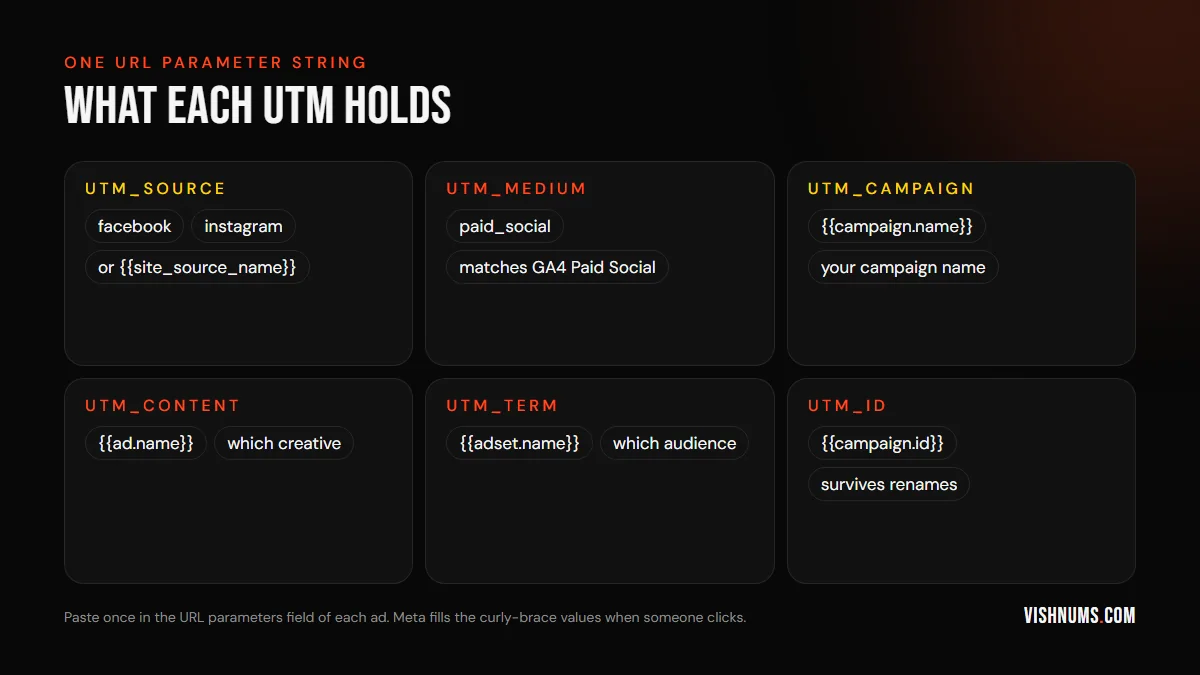
Typing a different UTM string for every ad is slow and error-prone. Meta solves this with dynamic parameters: placeholders in curly braces that Meta fills in automatically when someone clicks.
The most useful ones:
- {{campaign.name}} and {{campaign.id}}: the campaign's name and ID.
- {{adset.name}} and {{adset.id}}: the ad set's name and ID.
- {{ad.name}} and {{ad.id}}: the ad's name and ID.
- {{placement}}: where the ad was shown, such as Facebook Feed or Instagram Stories.
- {{site_source_name}}: the platform, returned as a short code such as fb for Facebook, ig for Instagram, msg for Messenger and an for Audience Network.
You put the template once in each ad's URL parameters field, and Meta replaces the placeholders with real values at the moment of the click. Meta's ad creation flow also includes a "Build a URL parameter" helper that lets you choose these values from drop-downs.
How to add UTMs in Ads Manager, step by step
- 01Open the ad in Ads Manager (at the ad level, not the campaign or ad set).
- 02Scroll to the Destination section, where your website URL is.
- 03Find "URL parameters" under Tracking (sometimes shown as "Build a URL parameter").
- 04Paste the template, without a question mark at the start. Meta adds it automatically.
- 05Publish, then repeat for every ad. You can select several ads and edit them together to save time.
- 06Use "Preview URL" if available to check the final link.
Keep your Website URL clean (no UTMs there) and put all tracking in the URL parameters field. If the same parameter appears in both, the URL parameters field usually takes priority, but mixing them invites mistakes.
Choosing the source value
There are two common approaches.
Dynamic source: utm_source={{site_source_name}}
This gives you fb, ig, msg or an as the source, so you can see Facebook and Instagram separately without separate templates. Check in GA4 that these short codes are recognised as social sources and grouped under Paid Social. If your reports show them under "Unassigned" or another channel, switch to the fixed approach below or adjust GA4's channel groups.
Fixed source: utm_source=facebook
Simpler and readable, and "facebook" is reliably recognised by GA4 as a social source. You lose the automatic Facebook/Instagram split in the source field, but you can still see placements by adding utm_term={{placement}} or keeping placement in another parameter.
Whichever you choose, use it on every ad. Consistency matters more than the exact choice.
Choosing the medium value
GA4's default channel grouping decides whether a visit counts as Paid Social, Organic Social, Paid Search and so on, using rules based on source and medium. For Paid Social, the source must be recognised as a social site and the medium must match GA4's paid pattern, which includes values that start with "paid" or contain "cp" (such as cpc or cpm), among others.
That's why paid_social is a good medium value: it clearly matches the paid pattern. Avoid medium values like "social" or "facebook_ads", which may land in Organic Social or Unassigned.
Check GA4's current channel grouping documentation if you're unsure, because Google updates the rules occasionally.
Naming rules that keep reports clean
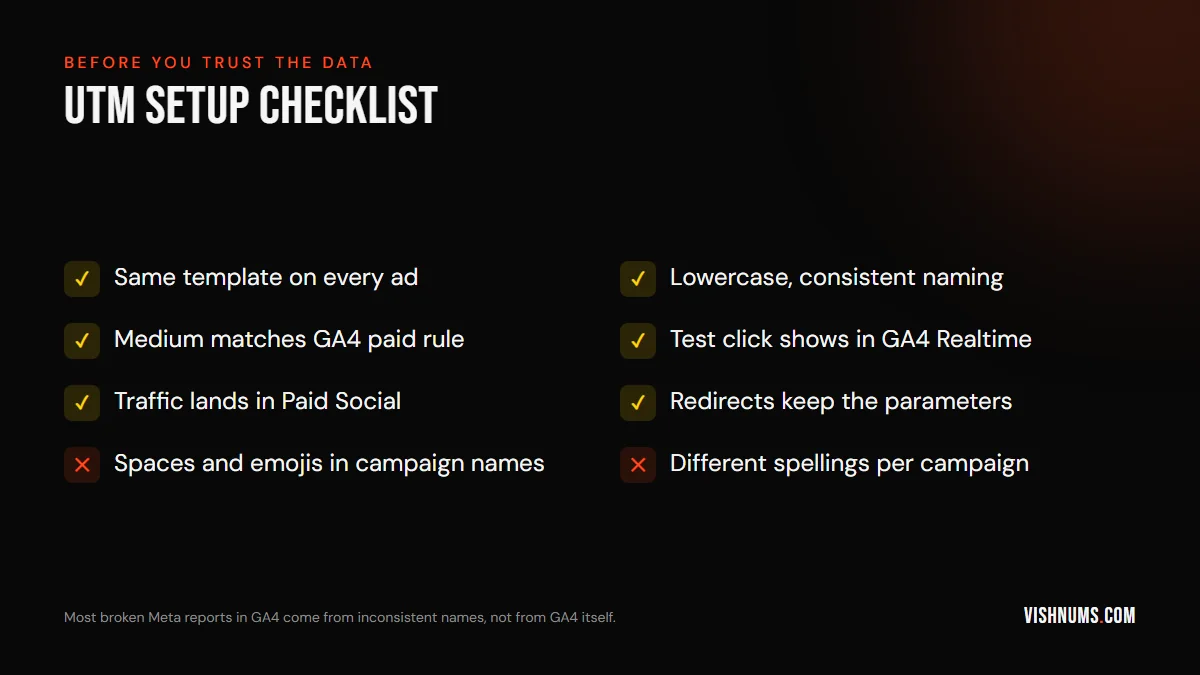
Dynamic parameters copy your Meta names exactly. If your names are messy, your GA4 reports will be messy. A few rules:
- Use lowercase consistently, because GA4 treats "Diwali_Sale" and "diwali_sale" as different campaigns.
- Avoid spaces and emojis; use underscores or hyphens.
- Use a consistent structure. For example, campaigns as objective_product_market_month (sales_bridal_kerala_2026-11), ad sets as audience_location (broad_kochi), and ads as format_angle_version (reel_testimonial_v2).
- Don't rename running campaigns if you can avoid it. If you do, utm_id keeps the link to the same campaign ID.
- Write the convention down and share it with anyone who creates ads.
A clean naming convention also makes Ads Manager itself easier to read and analyse.
A worked naming example
Here's how a small D2C brand selling jewellery might name things, and what GA4 would show.
- Campaign: sales_bridal_kerala_2026-11
- Ad set: broad_kerala_25-45
- Ads: reel_bride-testimonial_v1, carousel_necklace-sets_v2, static_offer-free-shipping_v1
With the template above, a click on the carousel ad from Instagram produces a landing URL like:
yourstore.com/collections/bridal?utm_source=ig&utm_medium=paid_social&utm_campaign=sales_bridal_kerala_2026-11&utm_content=carousel_necklace-sets_v2&utm_term=broad_kerala_25-45&utm_id=[campaign ID]
In GA4, you can then see sessions, engagement and purchases for that exact campaign, ad set and ad, and compare the testimonial Reel with the carousel on what happens after the click, not just the click itself.
Organic posts, bio links and Stories
UTMs aren't only for ads. Organic Instagram and Facebook traffic is often lumped together in GA4, making it hard to see what works. Add UTMs to links you share organically:
- Instagram bio link: utm_source=instagram&utm_medium=social&utm_campaign=bio
- Story link stickers: utm_source=instagram&utm_medium=social&utm_campaign=story_[topic]
- Facebook page posts: utm_source=facebook&utm_medium=social&utm_campaign=post_[topic]
- WhatsApp broadcasts: utm_source=whatsapp&utm_medium=broadcast&utm_campaign=[name]
Notice the medium for organic is "social", not "paid_social", so GA4 groups it under Organic Social. Keep paid and organic clearly separated.
Shopify and other platforms
Most e-commerce platforms, including Shopify, keep UTM parameters on landing pages and pass them to GA4 if your GA4 setup is correct. A few things to check:
- Make sure GA4 is installed once, either through the platform's integration or through Google Tag Manager, not both. Double tagging causes duplicate sessions and odd attribution.
- Check checkout tracking: purchases should be recorded as GA4 purchase events with revenue. Test with a real order.
- Watch for third-party checkouts (such as some one-click checkout providers popular in India) that may move customers to another domain. Check that purchases still appear in GA4 with the right source.
- Use the same naming convention across Meta, Google Ads and email so reports compare cleanly.
Audit your current setup in 15 minutes
If your ads are already running, here's a quick audit:
- 01In GA4, open the Traffic acquisition report for the last 30 days.
- 02Change the dimension to Session source / medium and search for "facebook", "instagram", "fb" and "ig".
- 03Note how much traffic is tagged (paid_social) versus untagged (referral) or misgrouped.
- 04Switch to Session campaign and look for messy duplicates: different capitalisations or spellings of the same campaign.
- 05In Ads Manager, open a sample of active ads from different campaigns and check the URL parameters field on each.
- 06Fix the template on every active ad, and set the naming convention for new campaigns.
Many accounts discover that a third or more of their Meta traffic was untagged, which explains why GA4 seemed to undercount Meta.
Check that it works
Don't assume the setup works. Test it:
- 01Click your own ad, or use the ad preview link, from a phone or browser.
- 02Look at the landing page URL: the UTM parameters should be visible after the question mark.
- 03Open GA4 Realtime and check that your visit appears with the expected source, medium and campaign.
- 04Wait a day, then check the Traffic acquisition report: filter to your campaign and confirm it's grouped under Paid Social.
- 05Check conversions: if someone purchased or submitted a form from an ad, confirm GA4 attributes it to the right campaign.
If the parameters disappear on the landing page, something is removing them, usually a redirect.
How the data flows
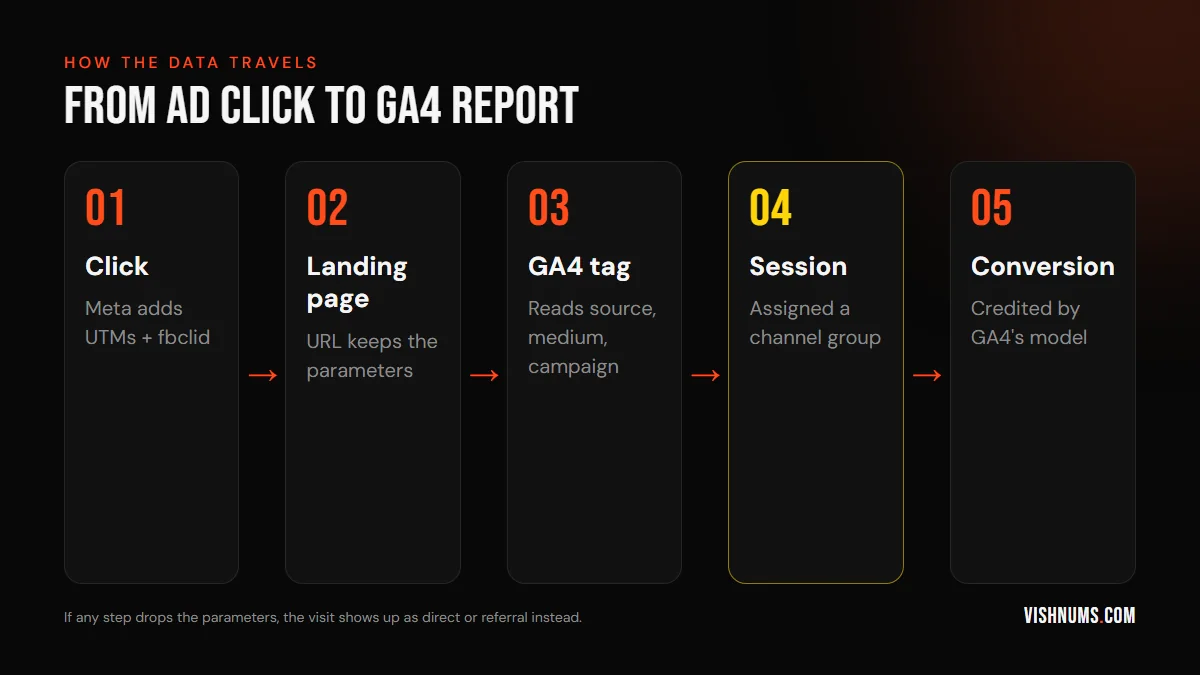
Understanding the journey helps you find problems:
- 01The click: Meta adds your UTMs and its own fbclid parameter to the URL.
- 02The landing page: the URL must keep these parameters. Redirects (http to https, www to non-www, a link shortener, a country redirect) sometimes strip them.
- 03The GA4 tag: reads the parameters when the page loads. If the tag fires late or not at all, the visit is lost or misattributed.
- 04The session: GA4 assigns the session to a channel based on source and medium.
- 05The conversion: if the visitor buys or submits a form, GA4 credits the conversion according to its attribution model.
If any step breaks, the visit may appear as direct, referral or unassigned.
Why GA4 and Meta still won't match
Even with perfect UTMs, numbers differ. That's expected:
- Attribution windows: Meta counts conversions within its attribution setting (for example, 7 days after a click and 1 day after a view), including people who saw an ad but didn't click. GA4 credits conversions based on its own model across all channels, and can't see ad views.
- Cross-device journeys: someone clicks on Instagram on their phone and buys later on a laptop. Meta may connect these through logged-in users; GA4 often can't.
- Consent and blockers: cookie consent choices, ad blockers and browser privacy features reduce what GA4 records.
- Timing: Meta reports conversions on the day of the ad interaction; GA4 reports on the day of the conversion.
- Lead forms and WhatsApp: instant forms and Click-to-WhatsApp ads don't send people to your website, so UTMs don't apply. Track those separately.
Use GA4 to compare channels and understand behaviour on your site, and use Meta's reports to optimise within Meta. For more on Meta's side, see Meta ads attribution settings explained.
Leads and WhatsApp: what to do instead
UTMs only work for traffic that reaches your website. For ads that keep people on Meta:
- Instant form leads: add a hidden field or use the form name and campaign data in Meta's lead download or CRM integration. How to get Facebook lead ads into Google Sheets for free shows how to collect them with campaign details.
- Click-to-WhatsApp: use a prefilled message unique to each campaign, or a WhatsApp Business API setup that records the ad referral. How to track WhatsApp leads from Facebook ads explains the options.
Hotels and booking engines
If your website hands visitors to a third-party booking engine on a different domain, UTMs and GA4 sessions can break at the handover. You may need cross-domain tracking and the booking engine's own analytics integration. Our guide to GA4 tracking for hotel booking engines covers this in detail.
Custom channel groups in GA4
GA4's default channel grouping works for most businesses, but you can create a custom channel group in the Admin settings if you want different rules. For example:
- A separate "Meta Ads" channel that includes any session with medium paid_social and a source of fb, ig, facebook or instagram.
- A separate "WhatsApp" channel for traffic tagged with utm_source=whatsapp.
- An "Influencers" channel for links shared by creators, tagged with a specific medium.
Custom channel groups apply to reports, so you can see your own categories side by side with GA4's defaults. Keep the default group too; it's useful for comparing with Google's benchmarks and other tools.
Consent, Tag Manager and data quality
Several things outside UTMs affect how much Meta traffic GA4 records:
- Cookie consent: if your site uses a consent banner, visitors who decline analytics cookies may not be fully recorded. Google's consent mode can model some of this, depending on your setup.
- Tag placement: if the GA4 tag loads late (for example, after a slow script), visitors who leave quickly may never be recorded.
- Google Tag Manager: if you use it, check that the GA4 configuration tag fires on all pages, including landing pages built with separate tools.
- In-app browsers: Facebook and Instagram open links in their own browsers, which sometimes behave differently. Test your landing pages inside the apps, not just in Chrome.
None of these are reasons to skip UTMs; they're reasons to treat GA4's Meta numbers as a lower bound and look at trends.
Reading Meta campaigns in GA4
Once UTMs are in place, useful GA4 reports include:
- Traffic acquisition: sessions, engagement and conversions by session source/medium and session campaign.
- User acquisition: how new users first arrived.
- Explorations: a free-form report with campaign, content (ad) and term (ad set) as dimensions, plus conversions and revenue.
- Advertising: model comparison reports, if available in your property.
Look for patterns: which campaigns bring engaged visitors, which ads lead to purchases, which audiences bounce. Then use those insights alongside Ads Manager's own data. For example, if one ad gets cheap clicks in Ads Manager but those visitors leave within seconds in GA4, the ad may be attracting the wrong people, or the landing page may not match the ad's promise. Either way, GA4 has shown you something Ads Manager couldn't.
Setup errors that break reports
- No UTMs at all, so Meta traffic shows as facebook.com / referral or direct.
- Different templates on different ads, making reports impossible to compare.
- Medium values that don't match GA4's paid rules, so paid traffic lands in Organic Social or Unassigned.
- Messy names with spaces, emojis and inconsistent capitalisation.
- Redirects that strip parameters.
- Adding UTMs to the Website URL field and the URL parameters field with conflicting values.
- Expecting GA4 and Meta to match exactly.
- Using UTMs on internal links within your own site, which overwrites the original source.
Sources and further reading
Google documents the channel rules and UTM fields here:
- Google Analytics Help: default channel group rules
- Google Analytics Help: URL builders and UTM parameters
Frequently asked questions
What UTM parameters should I use for Facebook ads?
A good template is utm_source={{site_source_name}}&utm_medium=paid_social&utm_campaign={{campaign.name}}&utm_content={{ad.name}}&utm_term={{adset.name}}&utm_id={{campaign.id}}, pasted in each ad's URL parameters field.
Where do I add UTM parameters in Meta Ads Manager?
At the ad level, in the Destination or Tracking section, in the field called URL parameters. Don't add a question mark at the start.
Why does Facebook traffic show as referral in GA4?
Usually because the ads have no UTM parameters, or the parameters are removed by a redirect before GA4 reads them.
Why don't GA4 and Meta Ads Manager numbers match?
They use different attribution windows and models, Meta counts view-through conversions, cross-device journeys differ, and consent settings and ad blockers reduce GA4 data. Compare trends rather than exact numbers.
What utm_medium should I use for Meta ads?
paid_social is a safe choice because it matches GA4's paid traffic rules. Avoid values like "social" that may put paid traffic into Organic Social.
Do UTMs work for lead form and WhatsApp ads?
No, because those ads don't send people to your website. Track them with form names, campaign details in lead data, and WhatsApp referral tracking.
Should I use UTMs on organic Instagram and Facebook links?
Yes. Tag your bio link, Story links and page posts with utm_medium=social so organic traffic is visible separately from paid traffic in GA4.
Can I fix old untagged traffic in GA4?
No. GA4 can't retroactively assign a source to past visits. Fix the setup now, and compare from the date you made the change.
Will UTMs affect my ad performance?
No. Meta ignores UTMs when delivering ads. They only affect how your analytics tools record visits.
Want your Meta ads tracked properly in GA4? Request a quote.
Ads, a website that converts, or both: get a custom quote.